Local LLMs Part 4: How to Build Your Own Personal Chat Interface


Set Up Open WebUI with Ollama, Docker, and OpenRouter for Multi-Model Chat
What if you could test multiple AI models side-by-side? Not just models from the expensive model vendors, but also your new favourite local model.
Want to know what the best model is for experiment ideation? What about the best model for data analysis, for writing marketing content, or extracting insights from user feedback?
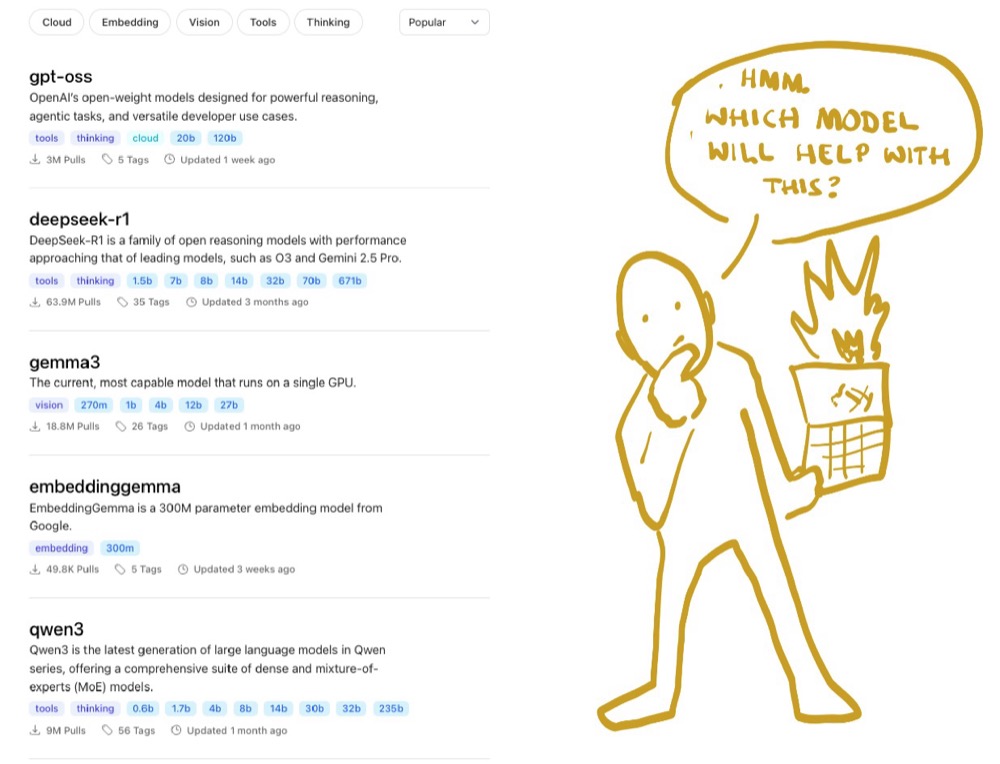
What if you wanted to know all of this while also saving money? What you need to do is set up your personal chat interface. Does all this sound too good to be true? It isn’t. What’s more, it’s easy, and you can do all of it in less than twenty minutes!
In this guide, I’ll show you how to set up a local chat interface which allows you to pit models against each other (local and hosted). All this so you can make smarter choices about the LLMs you use.
Note: If you haven’t been through the previous guides, it might be an idea to do so. That’s not to say you won’t get anything out of this guide if you haven’t.
About OpenWeb-UI
Openweb-ui is kind of like an empty shell of a chat interface. It’s open source, and it’s designed for you to plug in your own model sources. Now, when you visit the site, it looks intimidating at first:
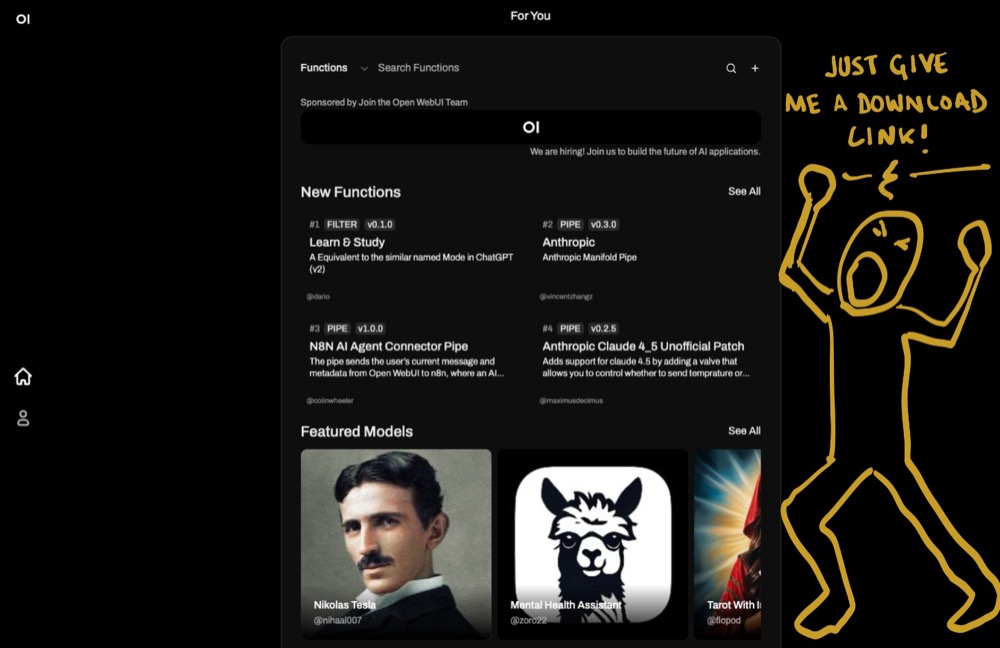
I mean, how do I even install it, for a start? Well, you can’t just install it like a normal application. You see, OpenWeb-UI is a web application, and we need to set up an environment to run it.
By environment, I mean a specific configuration of an operating system. So, yes, you’re right, creating an environment can be a lot of work. But it doesn’t have to be. We’re going to install a software called Docker.
You want me to install another piece of software?
Short answer: Yes. But let’s take stock of what we’ve installed and why:
1. LM Studio: great for shopping for local models.
2. Ollama for hosting our own local model server.
And now we have Docker, which allows us to install all sorts of useful tools. Think of Docker as a platform that allows us to load ready-to-use environments. Ready to use, as in, all we need to do is run them.
Step 1: Install and run Docker
Installing Docker is like installing any other software. Simply visit docker.com and download and run the relevant app for your operating system.
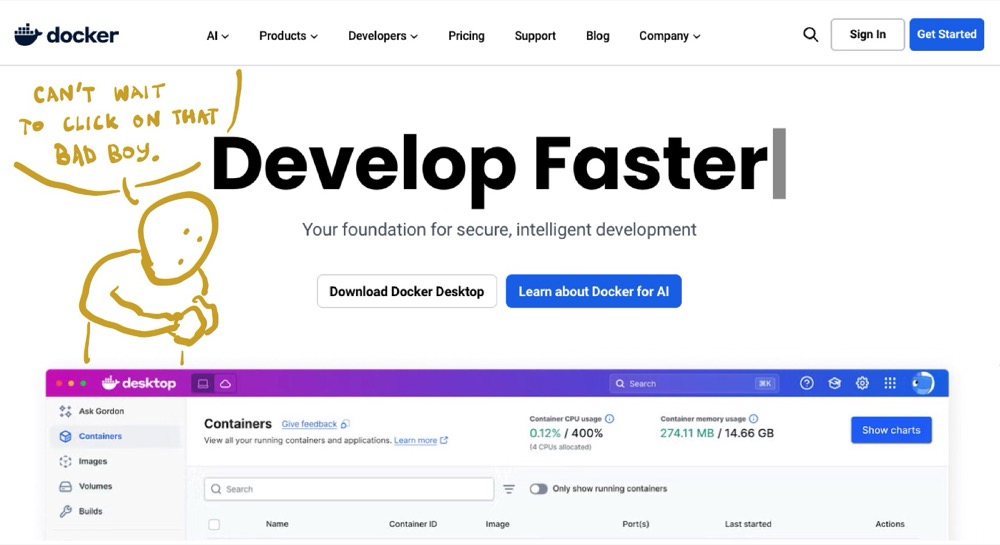
Once it’s running, you should see the “Docker whale” icon in your system tray. Click it and open your dashboard.

Quick tour of Docker:
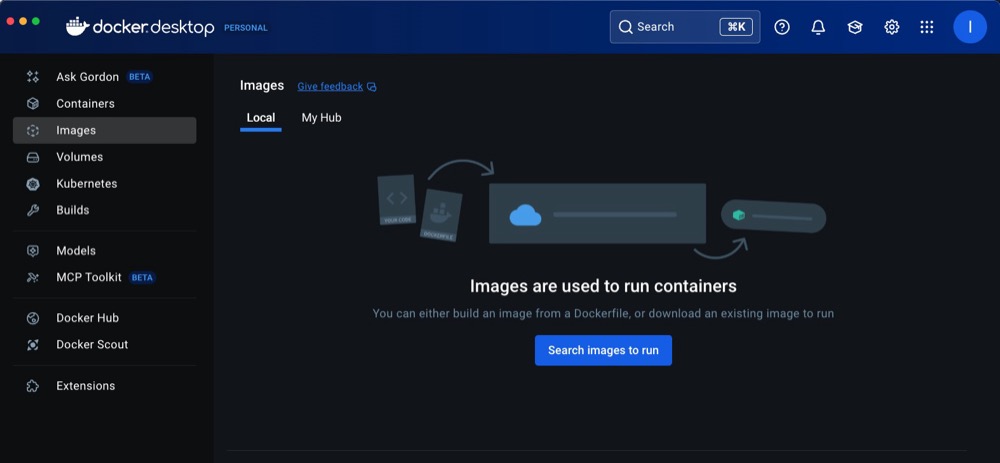
Images are like snapshots of operating systems already configured for specific use cases. Don’t worry, they’re very small images.
Containers are instances of the “images”. They’re where your actual app lives. You can run many containers based on the same image. This makes this setup very efficient.
Volumes are ways of sharing folders from your operating system with the operating system in your Docker container. We’re not going to worry about volumes for now.
Step 2: Find the openweb-ui image
In the Docker Desktop dashboard, search for openweb-ui and pick the image you want to install. I’d recommend fossandroid as it has the largest number of downloads and a good star rating.
Wait for it to download, and then run the image.
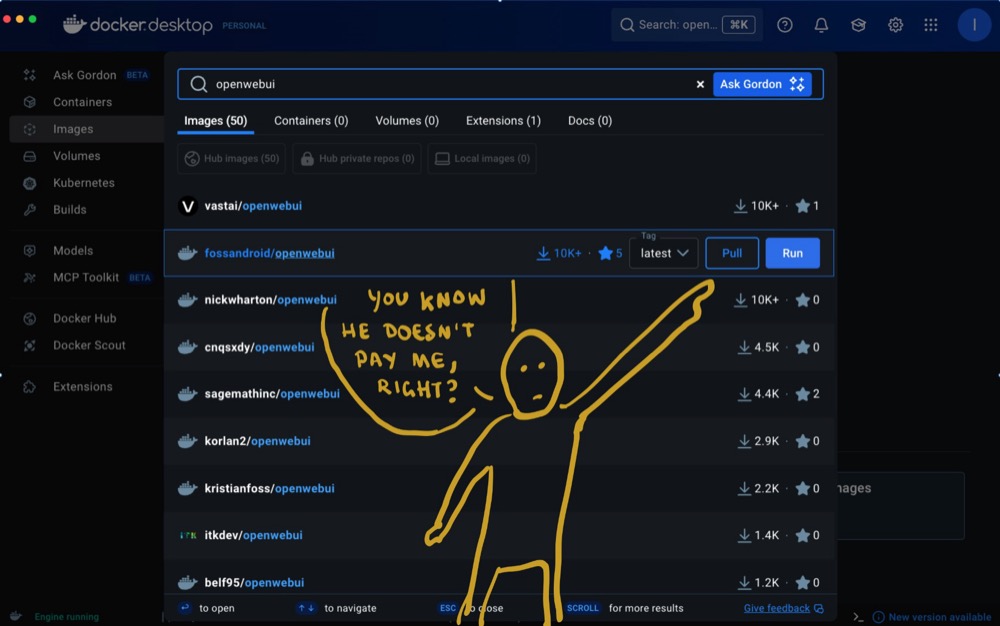
Step 3: Set up the container
Before you run the container, make sure you set the port so you know where to find the app! You can just copy 8080 from the internal port it displays.
And that’s it. Hit run and wait for the container to finish setting up.
Once you do, you’ll be able to use the link to access the openweb-ui app in your browser.
Step 4: Set up access to your Ollama server
Now, make sure your Ollama server is running. And if you’re lucky, you should see your models show up in the list of models straight away! You can now start chatting with your local model.
Just in case your server is not found, click the account icon at the bottom left, head on over to Admin Panel → Settings → Connections.
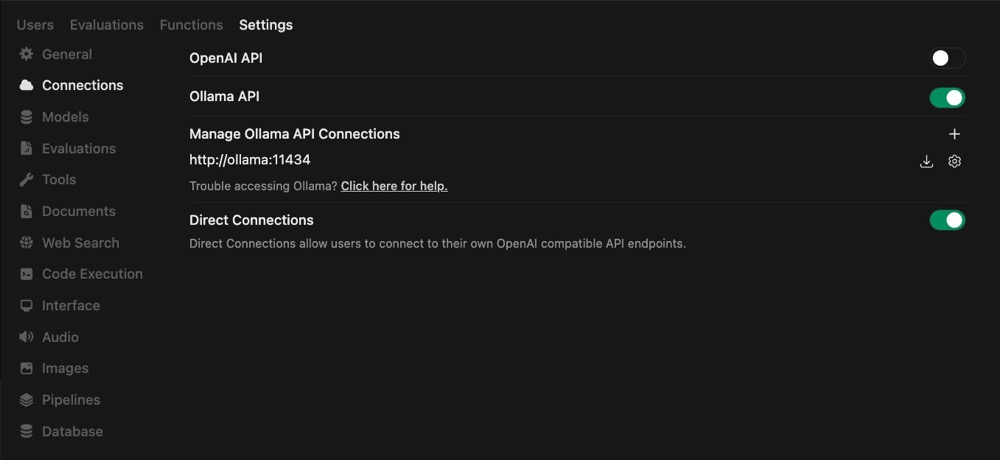
You can click on the ‘cog’ to change the Ollama API settings:
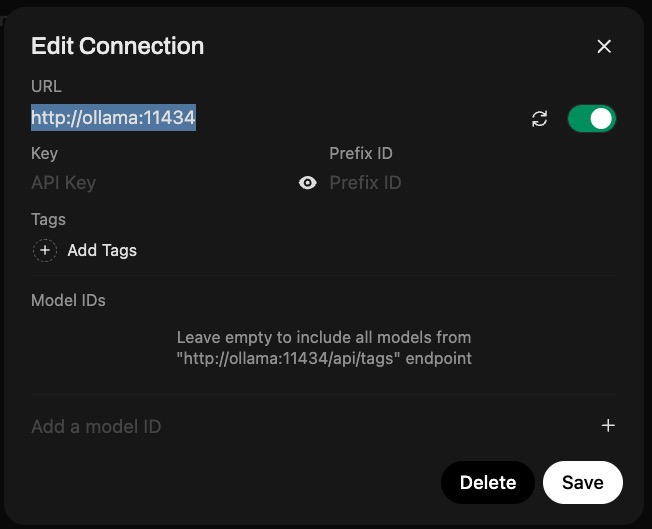
Put your Ollama server IP address in there (see my previous guide for how to get this).
Step 5: Set up access to all other models
Now, I promised the ability to compare local models against those from model vendors like Google, Anthropic, and OpenAI. Before I talk you through that, a quick thing about model vendor access.
You see, we generally have two options to use their LLM models. The most popular method is to use their chat interface. This is where most people set up their subscriptions. You get a certain amount of limited free access before you’re hounded to subscribe.
The alternative to this subscription model is to use their API access. Which is a pay-as-you model of usage. The process involves getting an API key, buying credits to use, then using that key to access their services programmatically.
This API access is what we’re going to use. But importantly, we’re not going to set up access to each API. Instead, we’re going to create an account with a service called OpenRouter…
What’s OpenRouter?
Think of OpenRouter as a middleman between you and the other model vendors. Instead of creating an API key with each of these vendors, you instead create a single API key with OpenRouter, add funds and then they deal with the rest, giving you access to more models that you’ve heard of.
Be sure to review their list of models and check prices. As the cost for access can vary wildly!
After creating an account with OpenRouter, create an API key, copy it and keep it somewhere safe. We’re going to paste this into Openweb-ui. Now, while we’re on the OpenRouter site, click Docs, and copy the base URL. This is the address to access the OpenRouter API.
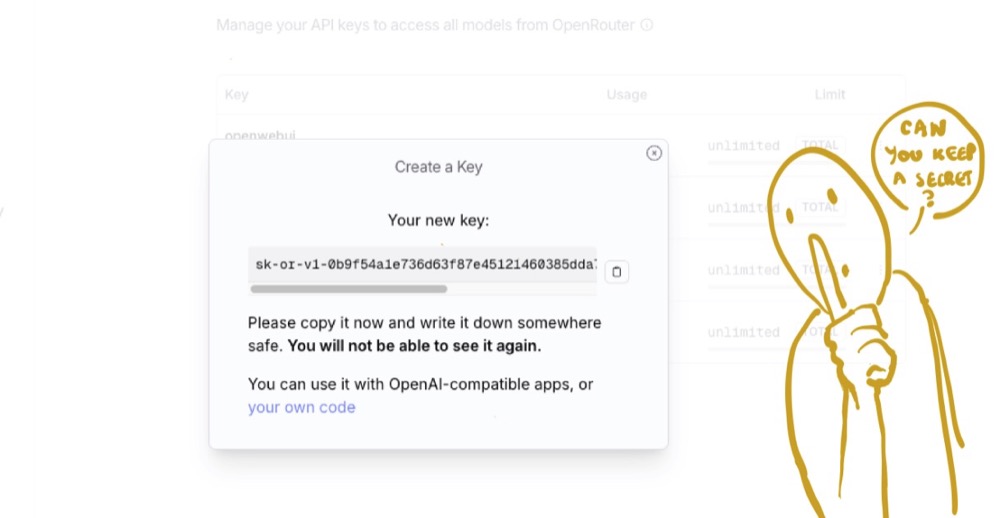
Keep this address, along with your API key, safe. Then head back over to OpenWeb-UI and go to Admin Panel → Settings → Connections.
Add the URL and API key under the OpenAI API settings. Open Router API is compatible with OpenAI API, which is super handy for us.

That should now get you connected to the OpenRouter API.
Step 6: Set up comparison
And that’s it! Now, if you start a new Chat, you can click + in the models dropdown to add as many models as you like to compare them.

I like to run comparisons any time I’m doing something new and want to compare models against each other. As you test flagship models against the smaller models, you’ll notice how much faster those smaller models often are (especially some local models!).

What’s Next?
Now that we’ve set up our own chat interface, I’d recommend comparing models regularly and you’ll quickly pick up model characteristics; they’re like personality traits.
There’s a lot more you can do with Openweb-ui. You might even start using it as a complete replacement for the model vendor interfaces. I know I have.
Editor’s note: This is the latest in our series on running AI locally. If you’re just getting started, we’d recommend going back to our intro to small language models, our piece on setting up a local LLM server, or the one where we beat ChatGPT 5 with the smallest model we could find. Curious about connecting AI to real tools? Check out MCP Demystified.

Written By
Iqbal Ali
A/B Testing, Experimentation Program Coaching, UX Design +4 more
A/B Testing, Experimentation Program Coaching, UX Design, n8n Automation, Small Language Models, Model Context Protocol (MCP), Client-Side A/B Test JavaScript Show less
Edited By
Carmen Apostu