MCP Demystified Part 1: Connecting Chat Interfaces to Real Tools (Starting With a Calculator)


Chat interfaces are all talk. When we actually want to do stuff, the best we can get out of them are clear instructions. But what if we wanted more generative AI involvement with the doing part?
In previous episodes, we tackled this by creating workflows in n8n with connected tools. It wasn’t hard, but it was time-consuming. Also, the tools weren’t actually “there” in our chat interfaces.
So, it might be tempting to use generative AI for silly stuff like math. Now, I’m personally not comfortable doing that. But giving our chat interface plug-and-play access to a real calculator? That seems like a great idea. Then, when the LLM needs to do math, it uses that tool. All without too much work.
This applies to a wider range of use cases beyond just calculator connections. For instance, we could connect to browsers, calendars, or thousands of other available tools. All this would make our chat interface much more useful and capable of reliably doing stuff.
This is all possible with something called MCP. Today we’re going to learn what MCP is, how it works, and why it’s important. As a simple example, we’re going to set up a calculator as a tool and connect it to our chat interface.
In this case, we’ll use LM Studio; everything will run locally, using small models. And best of all, you don’t need any coding experience.
So, let’s get to it.
What Is MCP?
MCP stands for Model Context Protocol. In simple terms, it’s a standardised way for AI models to communicate with other applications. Whether that’s a simple calculator, your web browser, or any other tool.
We’re going to take a specific look at n8n in the next article. For now, let’s start with what we know best…
User Interfaces
Humans like you and me have graphical user interfaces for the apps we use. Let’s look at LM Studio as an example. LM Studio is a tool we explored previously for downloading and testing AI models.
If you want a quick refresher, here’s a link to the previous article.
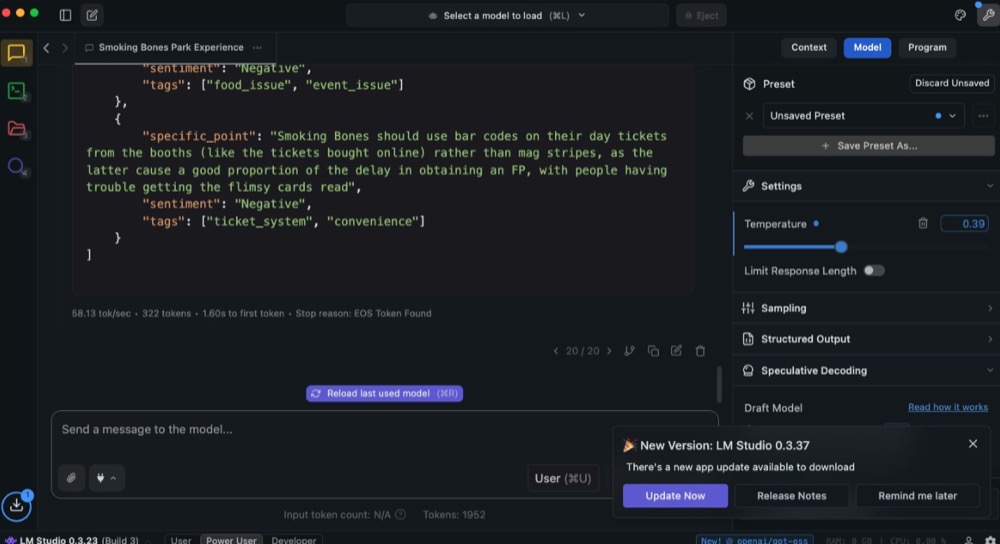
LM Studio has a number of tabs along the left side of the screen:
- Chat
- Developer
- My Models
- Discover
Depending on what we want to do, we go to the relevant tab. Want to chat with a model? Click Chat. Discover new models? Hit the Discover tab. Each section has an interface designed to make that specific task easy for humans.
But what if the user isn’t human? What if it’s an application? Specifically, what if it’s a developer needing to coordinate communication between applications? You could still use this interface, but it’s not really optimal. Enter…
Application Programming Interface
API stands for Application Programming Interface. In other words, an interface designed for applications to use instead of humans. Here’s what the API looks like for LM Studio:
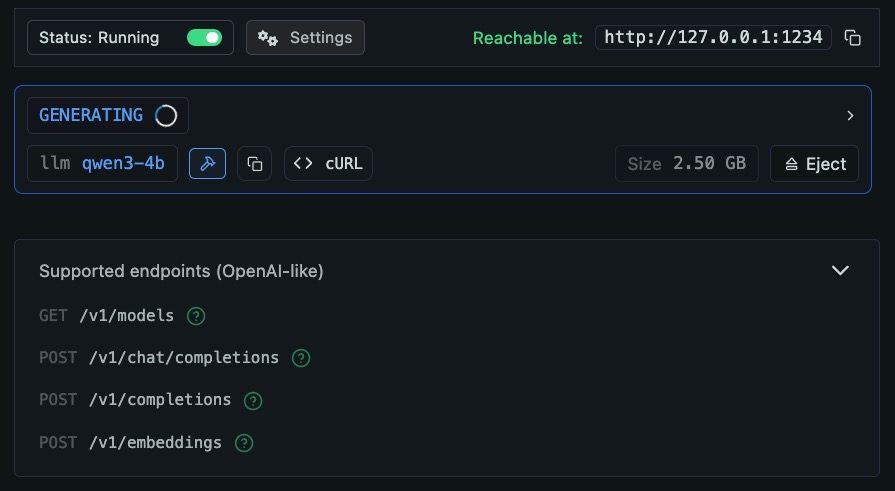
Don’t worry if it all looks complex. The main things to know: the “Reachable at” bit is the app address, and “endpoints” are the specific paths. Endpoints are the “tabs” for the API. What to get a list of models? Use address /v1/models. Want to send a chat message? Use /v1/chat/completions or /v1/completions.
LM Studio has only a few endpoints, whereas some applications have tens or even hundreds. How do you know what each does? The answer is documentation.
Documentation is vital for APIs. If a developer needs to facilitate communication between applications, they need to know which endpoint to use and how to use it. In our graphical interface, we may have tooltips to guide us.
So what does this have to do with MCPs? Well, what if the user isn’t a human or another application? What if the user is a language model operating on behalf of a user or application?
LLMs can technically use APIs. We’ve even built examples where we connected to the Google Sheets API using n8n. But that required significant human setup and hand-holding. Every time we want the LLM to use a new API, we have to:
- Read the documentation ourselves
- Figure out the right endpoints
- Configure the exact data format
- Build the integration manually
There has to be a better way. Enter MCP.
Model Context Protocol
MCP is like a universal adapter that lets LLMs plug into various tools using a common language. MCPs consist of two parts: servers and clients.
The MCP Server
Think of an MCP server as a wrapper around a tool or service that contains documentation to describe itself. The “self-describing” nature means the MCP Server tells the LLM how to use the tool.
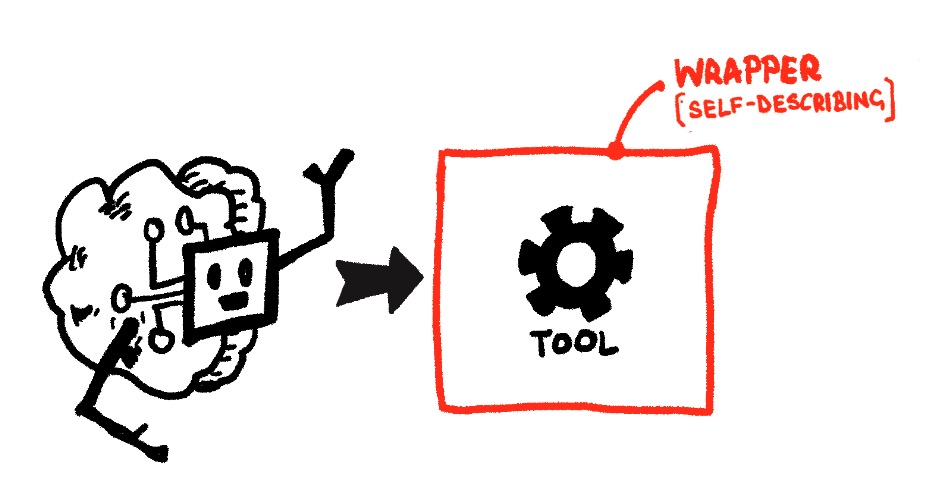
Here’s a simplified example of what the MCP server code looks like:
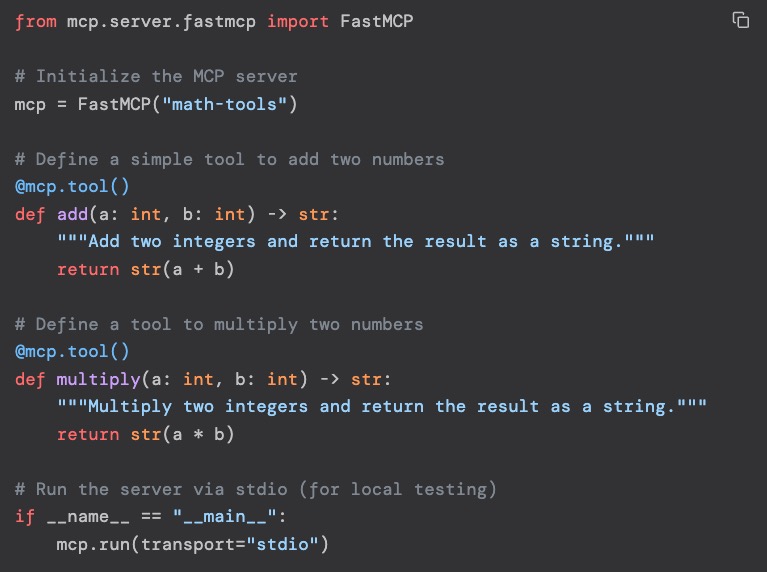
Don’t worry about understanding the code. The key point is that it combines the available functions or endpoints (e.g., add and multiply) with clear descriptions of what they do and how to use them. The LLM can read this and understand how to use the tool.
MCP Client
An MCP Server is only half the equation. To actually use it, we need an MCP client. The client allows us to “plug in” to each respective MCP Server:
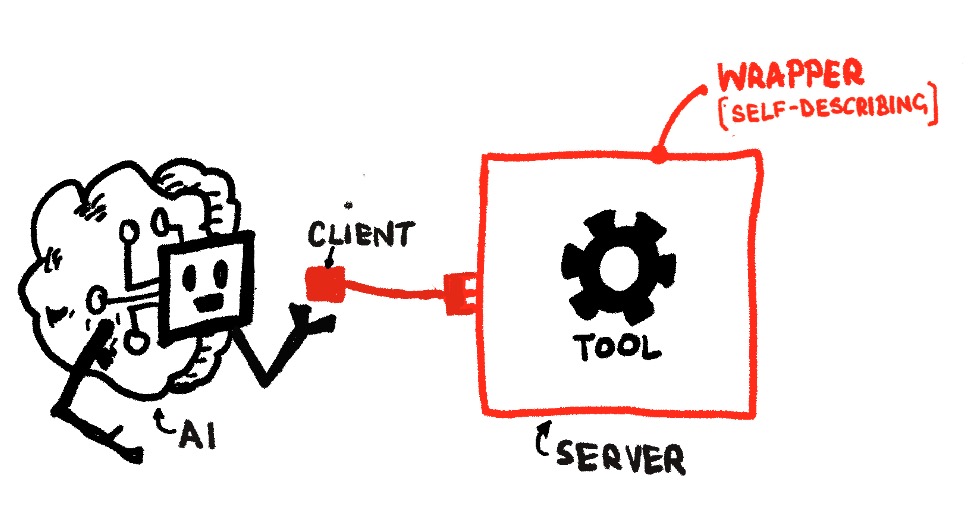
Here is an example of what a simple MCP client configuration looks like:
{
  "mcpServers": {
    "mcp-server-name": {"url": "address/of/mcp/server"}
  }
}
This tells the client to connect to the server using the address. It can also include API credentials to enable connections. The configuration can also include commands to connect to applications on our machine (assuming they have the MCP Server set up).
We can, of course, connect to multiple servers:
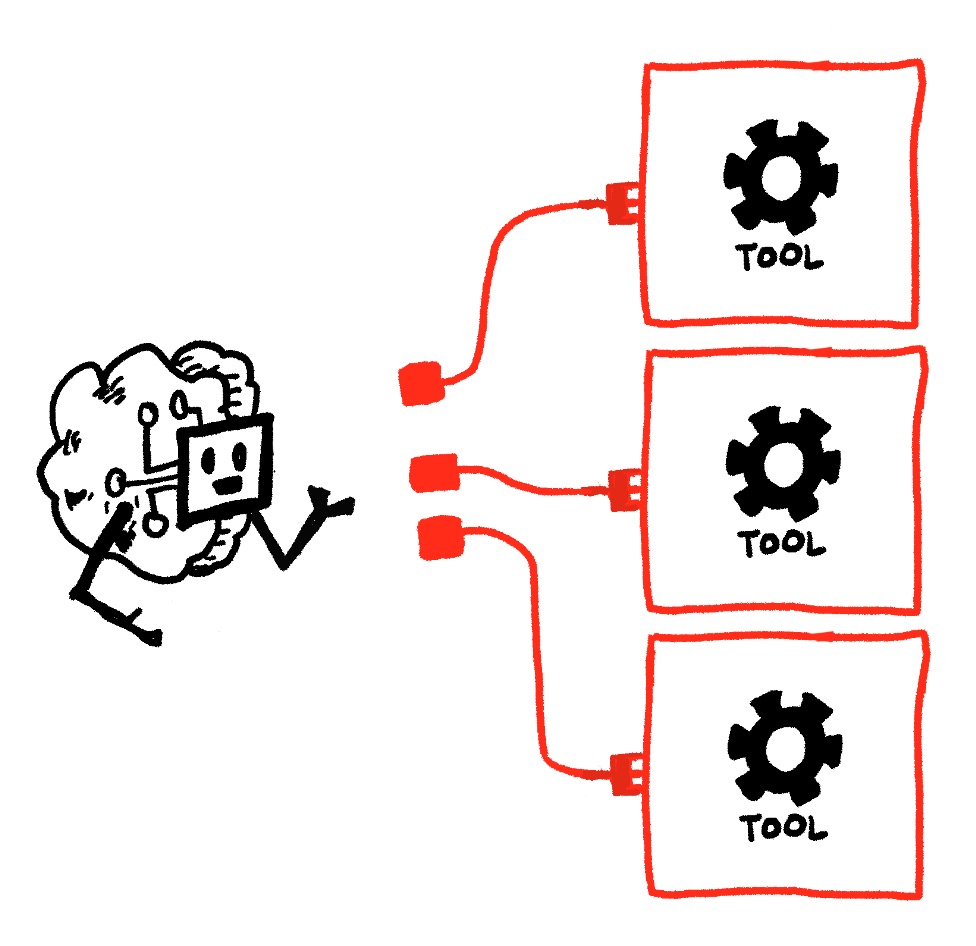
The MCP client configuration might therefore look something like this:
{
  "mcpServers": {
    "mcp-server-name-1": {"url": "address/of/mcp/server"},
    "mcp-server-name-2": {"url": "address/of/mcp/server"},
    "mcp-server-name-3": {"url": "address/of/mcp/server"},
  }
}
There are tonnes of ready-to-use MCP servers available. Check out mcpservers.org to get an idea of the range. Note that you do need to have ‘node’ and/or ‘uv’ installed for most of those.
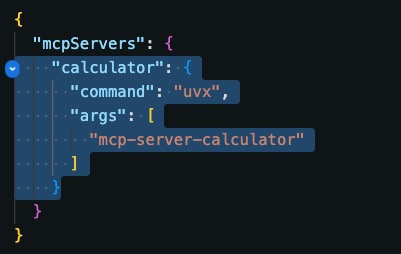
For example, here is the configuration for a basic calculator:
{
  "mcpServers": {
     "calculator": {
        "command": "uvx",
        "args": ["mcp-server-calculator"]
     }
  }
}
All we need to do is copy and paste from MCP Servers to use them. This tells the client: “Ensure the Calculator MCP Server exists, then connect to it.” Let’s take this one for a test-drive.
Test-Drive an MCP
Note: The above requires ‘uv’. Don’t worry if you don’t have it installed; treat this as a conceptual guide. The next tutorial will cover using n8n MCP Servers, and you should hopefully be able to follow along with that one!
Now, let’s connect LM Studio to the Calculator MCP server and take this thing for a test drive. Open up LM Studio, go to Chat and click on the plug icon:

Then, Install > Edit mcp.json. You’ll get to a screen like this:
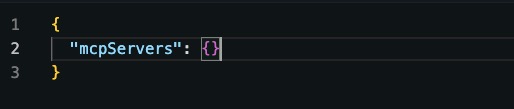
Add the server and hit save:
Then, back in the chat window, hit that plug icon again, and we’ll see the calculator appear as an available MCP Server.
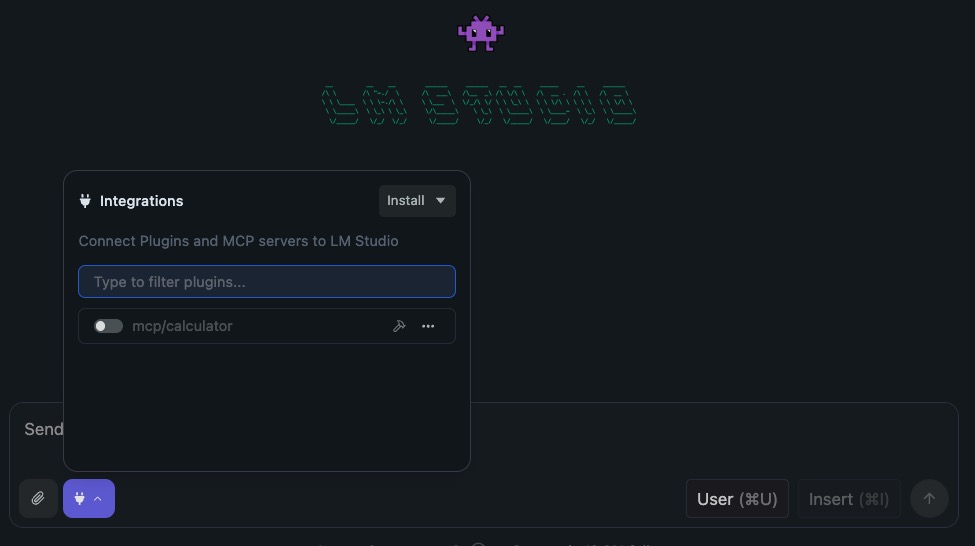
Enable it, and give it a try. Example prompt:
Prompt: Calculate 5*(176*2.7). Give me the answer.
The result? LM Studio uses the calculator tool to give us the correct answer. Now, on the surface, this may not be the greatest use case (since even small models these days can do most simple math), but compared to not using the tool, it can still save valuable LLM processing time.
Sometimes, the LM can take as long as two minutes to figure out how to do that math. Using the tool, the model spends no more than seven seconds.
Not only that, but using the tool provides us with greater transparency:

Why Does MCP Matter?
With a simple configuration entry, we’ve given our AI the tools it needs. Not just the ability to talk about using them. That calculator we set up is just the beginning. We can add browsers, file systems, databases, and thousands of other tools the same way. It’s not just about connecting chat interfaces either. We can connect any tool that uses AI.
Things get really interesting when we combine MCP with n8n workflows. In my mind, that’s where the true potential lies, and that’s exactly what we’re exploring next.
Editor’s note: This guide is part of a broader series on building practical AI systems. If you’re just getting started, we’d recommend our guides on getting started with AI automation in n8n, building your first AI agent, connecting Google Sheets to n8n, building RAG workflows with n8n and Qdrant, extracting themes from user feedback with n8n, and quantifying themes with n8n.

Written By
Iqbal Ali
Edited By
Carmen Apostu