The Reliable Way To Extract Themes From User Feedback Using n8n


We have a spreadsheet full of user feedback. We’ve put them all into a vector store, and now we can search the feedback semantically using theme labels, specific mentions, etc. (as we did in previous videos).
But there’s a problem. This workflow still requires us to familiarise ourselves with the feedback. Otherwise, how do we know what to search for?
What would be helpful is to gain some understanding of the general themes relevant to the feedback. Now, I know what you’re thinking: “Just throw it into ChatGPT, bro. ChatGPT is ace, innit?” Let me remind you of an AI promise vs reality:
- The promise: An LLM can absorb the equivalent of seven volumes of Harry Potter books’ worth of content.
- The reality: LLMs are only optimal for about three pages of content. That’s a heck of a difference! Beyond that amount of text, the risk is that it’s just making stuff up.
What we need is an efficient way to work with context windows.
That’s what we’re going to work on today. Some requirements: we’re going to use small models, since they’re cheaper, faster, and more energy efficient. We also want a simple no-code workflow that makes our job easier. We’re not looking to cut ourselves out of the process.
In short, here’s what we’re going to build (I like to draw a rough sketch of the workflow before going into n8n):
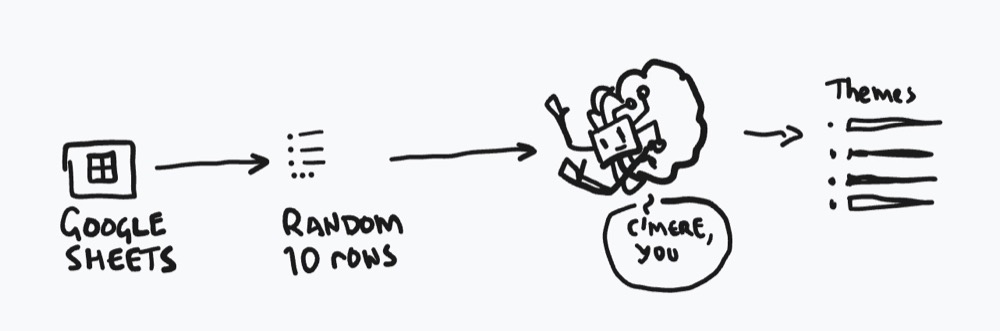
In terms of steps, here’s how it breaks down:
- Connect to our Google Spreadsheet with our user feedback
- Fetch ten random items of feedback *
- Send those ten items of feedback to our small model to…
- … extract our final themes.
* We’re going to start with ten for testing purposes. We can update the number later.
Now, let’s get straight into it.
Step 1: Get rows
Here are the first two nodes we need to build:

We have a chat trigger, since it’s easy to see the extracted themes in the chat window. We also connect to Google Sheets and fetch all the relevant rows of data from our spreadsheet. If you haven’t set up a Google connection, you need to watch/read this.
Don’t worry about filtering yet; we’re just going to fetch all the rows of data. Yes, there will be a lot of data, but we’ll handle that next…
Step 2: Randomise and limit
We have a problem! We have too many rows of data!
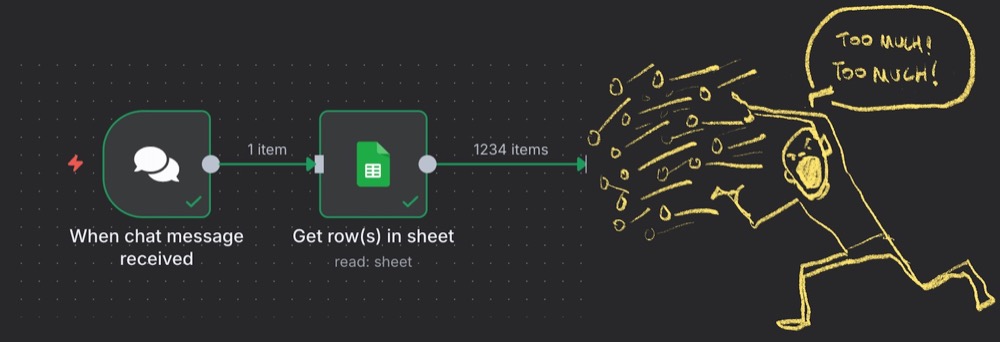
We want to start with a random sample of ten from the dataset. This involves using two nodes in n8n:

- Sort: Allows us to shuffle a list randomly
- Limit: Allows us to limit the list (to 10 items)
For the Sort node, change the type to Random, then hit Execute step to see the list shuffle:

And for the limit, just set the max items to ten (don’t worry, we can tweak this once we’re ready to use this for real):

Step 3: Extract themes
This is the workflow we have so far:

The last step is to use a small model to extract themes from the sample of responses. Now create a new Basic LLM Chain…

…and set the model sub-node to your local mode or, if you fancy trying something new, try meta-llama/llama-3.2-1b-instruct from OpenRouter API. It’s one of the most power-efficient models out there.

Here’s the set-up for the Basic LLM Chain Node:
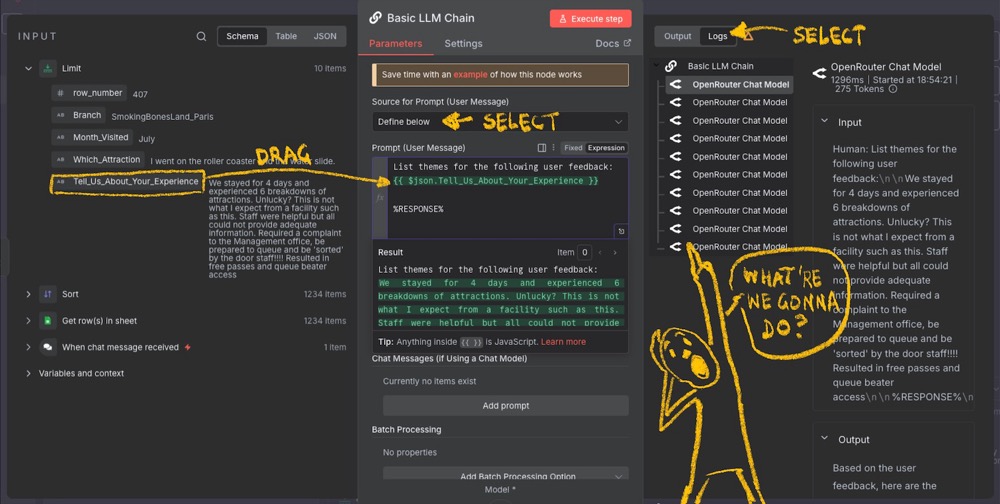
Once you run it, you’ll see a problem when you look at the logs. Ten calls are made to the model! One for each item in the list. You can see the issue here as well: ten items, ten calls.
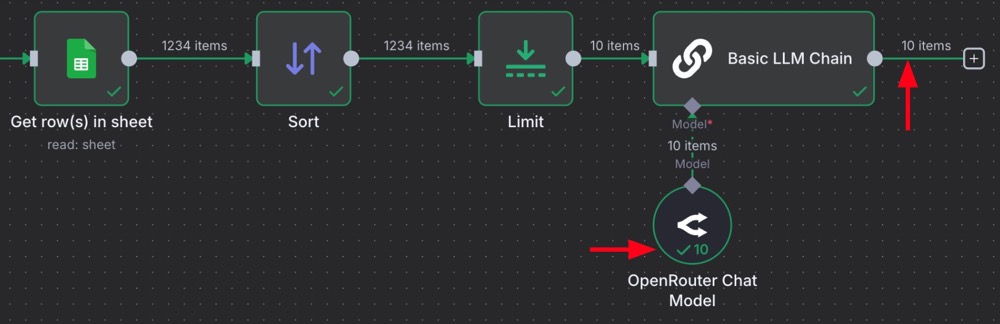
What’s happening? By default, the Basic LLM Chain is running once per list item. That’s obviously not what we’re looking for. We want to make a single call to the LLM to extract themes from the entire data sample.
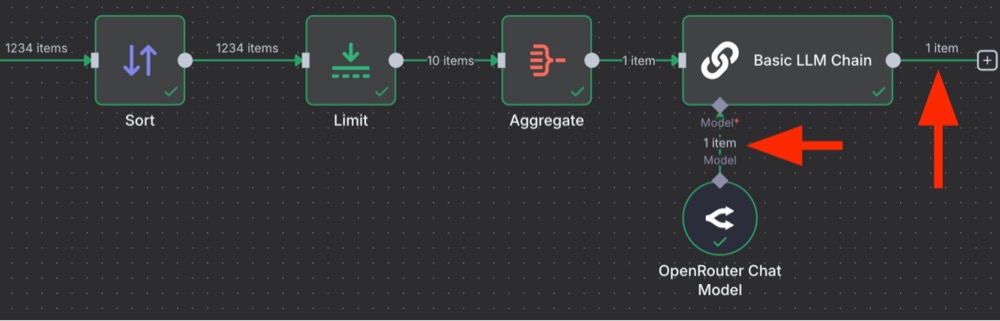
The solution? First, chill, we’re using small models, so this hasn’t cost us much. Secondly, the node we need to use is called an Aggregate node. It does exactly what it sounds like: it aggregates the data. So, add the Aggregate in between the Limit and the Basic LLM Chain node:

Here are the settings for the Aggregate node. We simply drag the field we want to aggregate over to the Input Field Name, and when we check the output, we’ll see a single list.

Now, rerun the Basic LLM Chain, and we’ll find we have one item and one call made with all ten examples. This is more like it.
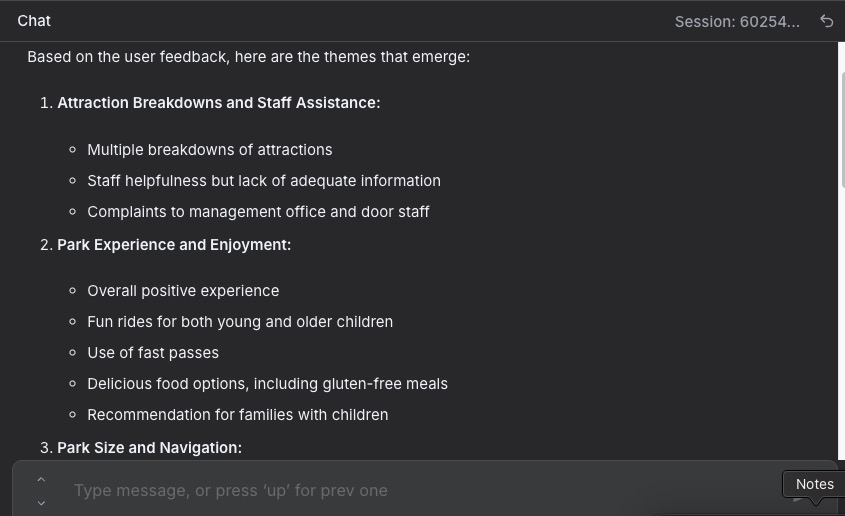
Check the overall output, and we’ll see something like this:
Conclusion
We now have a workflow that fetches random samples and processes them for themes. We can run this as many times as we want. Each time it runs, it helps us get closer to the data.
To further optimise this, we can update the prompt to return quotes, so we can check the references and achieve a higher level of confidence over the theme extractions. Isn’t that so much better than having a GPT black box do all the work for us, without any insight into its accuracy level?
We haven’t needed to do any coding either. We’ve learnt a couple of new nodes to help us achieve this workflow: Sort, Limit, and Aggregate. We also used a small model, so we’re working efficiently and sustainably.
There’s more we can do with this, though. So, come back next time when we use this base to build out further “research helpers”.
Editor’s note: This guide is part of a broader series on building practical AI systems. To see how the pieces fit together, explore our guides on getting started with AI automation in n8n, building your first AI agent, connecting Google Sheets to n8n, building RAG workflows with n8n and Qdrant, and quantifying feedback themes with automation.


Written By
Iqbal Ali
Edited By
Carmen Apostu